Navigating the world of temperature measurements can sometimes feel like learning a new language, especially when bouncing between Fahrenheit and Celsius. Whether you’re a seasoned chef perfecting a roast, a tech enthusiast customizing your smart home, or simply checking the weather, knowing how to switch your device’s temperature unit is essential for accuracy and convenience. This guide will walk you through the precise steps to convert your devices from Fahrenheit to Celsius, ensuring you always have the temperature information you need, in the format you prefer.
Understanding Temperature Scales: Fahrenheit vs. Celsius
Fahrenheit (°F) and Celsius (°C) are the two most common temperature scales used globally. Fahrenheit is predominantly used in the United States and a few other countries, while Celsius is the standard in most of the world for daily temperature readings, scientific applications, and culinary purposes. The freezing point of water is 32°F or 0°C, and the boiling point is 212°F or 100°C. Understanding these differences is crucial not only for interpreting weather reports but also for precisely following recipes and ensuring food safety. Using the correct temperature unit prevents confusion and helps you achieve perfect results every time.
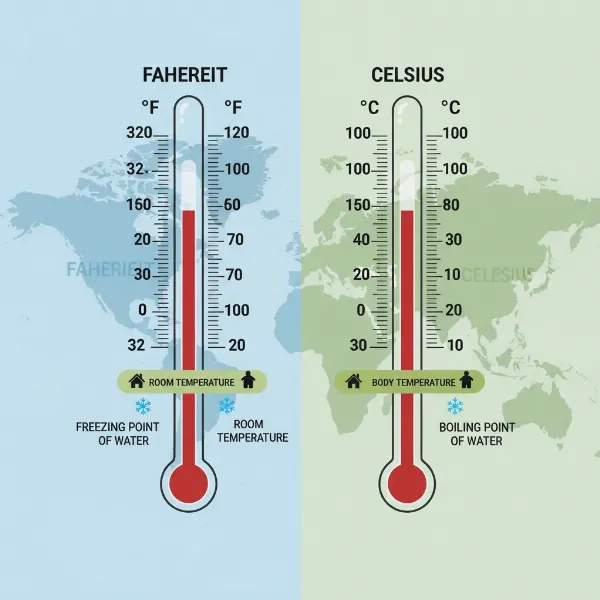 A visual comparison of Fahrenheit and Celsius temperature scales on a thermometer, showing freezing and boiling points.
Switching Units on Digital and Smart Meat Thermometers
As an expert in meat thermometers, I know that precise temperature control is paramount. Many modern meat thermometers offer the flexibility to switch between Fahrenheit and Celsius, a feature that’s incredibly useful for following diverse recipes or adhering to different regional standards.
Instant-Read and Basic Digital Thermometers
For many instant-read and basic digital meat thermometers, changing the unit is often straightforward.
- Dedicated °C/°F Button: Look for a small button labeled “°C/°F” or just “UNIT” on the device, typically on the back or side. A single press usually toggles between the two scales.
- Press-and-Hold Method: Some models require you to press and hold a specific button, such as “SET,” “MODE,” or even the power button, for a few seconds (often 3-5 seconds). The current unit on the display might start flashing. While flashing, you can press the same button or arrow keys to select your desired unit, then press again to confirm.
- Physical Switch in Battery Compartment: Less common with newer models, but some older or simpler digital and infrared thermometers may have a tiny physical switch located inside the battery compartment. You’ll need to open the compartment and toggle this switch to change the unit.
|
Our Picks for the Best Meat thermometer in 2026
As an Amazon Associate I earn from qualifying purchases.
|
||
| Num | Product | Action |
|---|---|---|
| 1 | ThermoPro TP19H Digital Meat Thermometer for Cooking with Ambidextrous Backlit and Motion Sensing Kitchen Cooking Food Thermometer for BBQ Grill Smoker Oil Fry Candy Instant Read Thermometer |

|
| 2 | Meat Thermometer Digital - Instant Read Food Thermometer for Cooking Grilling, Candy, Air Fryer, Griddle Probe Kitchen Gadgets Essentials BBQ Accessories, Valentines Day Gifts for Him Her, Red |
|
| 3 | 0.5 Sec Instant Read Meat Thermometer Digital with ±0.5℉ Precision, Food Thermometer for Cooking Kitchen Gadgets, Oven Grill Candy BBQ Essentials Accessories, Gifts for Him Dad Men Birthday, Red |
|
| 4 | Meat Thermometer Digital with 1 Second Instant Read, Large LED Display, Food Thermometer |
|
| 5 | TempPro TP829 1000ft Wireless Meat Thermometer Digital for Grilling and Smoking, 4 Meat Probes Grill Thermometer for Outside Grill, BBQ Thermometer for Cooking Food Temperature (Previously ThermoPro) |
|
| 6 | Professional Meat Thermometer - Instant Read Food Thermometer with Waterproof Design, Backlight, Hold/Min/Max Function - Cooking Thermometer for Grilling, BBQ, Kitchen Use |
|
| 7 | Ultrean Digital Meat Thermometer for Cooking,Ultra-Fast Instant Read Food Thermometer with Backlight,Foldable Probe,Waterproof Kitchen Thermometer for BBQ,Grill,Fry,Oven,Candy Making |
|
| 8 | Alpha Grillers Meat Thermometer Digital - Instant Read Food Thermometer for Cooking and Grilling Gifts for Men Valentines Day Gifts for Him Her Mom Dad |
|
| 9 | ThermoPro TP03B Digital Meat Thermometer for Cooking, Instant Read Thermometer with Backlight, Kitchen Food Thermometer for Grill Smoker BBQ Oil Deep Fry Candy Bread Coffee with Pop-up Meat Probe |
|
| 10 | Meat Thermometer Digital, Instant Read Meat ThermometerI for Grill and Cooking, Waterproof Food Thermometer for Kitchen and Outside, BBQ, Turkey, Candy, Liquids, Beef |
|
Smart Meat Thermometers
Smart meat thermometers, like those offered by MEATER, often integrate with mobile applications, making unit changes intuitive.
- Through the Mobile App: Open the dedicated MEATER app on your smartphone or tablet. Navigate to the “Settings” menu (often represented by a gear icon or three dots). Within the settings, you should find an option for “Temperature Scale” or “Units.” Here, you can easily select between Celsius (°C) and Fahrenheit (°F).
- On Standalone Units: If your smart thermometer system includes a standalone hub or block (like the MEATER Block), you might also be able to change the units directly on the device. Typically, this involves accessing the device’s “Settings” menu via its screen and navigation buttons, then selecting “Temperature Scale.”
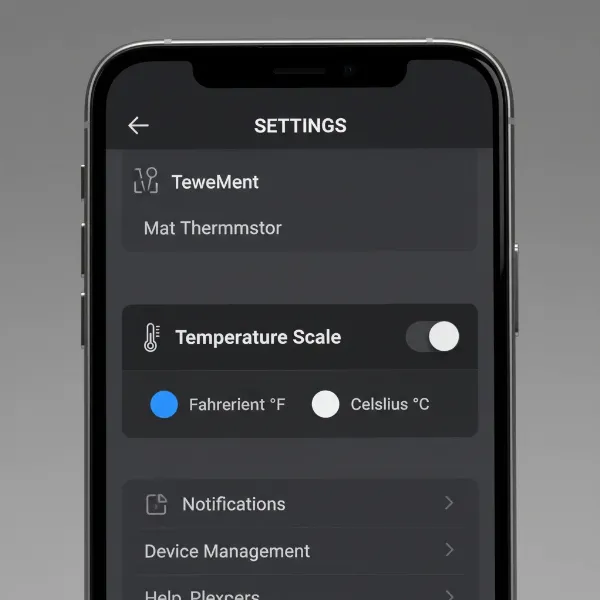 A smartphone screen displaying a smart meat thermometer app's settings menu with an option to switch between Celsius and Fahrenheit.
Changing Temperature Units on Smart Home Devices and Android Phones
Your smart devices and smartphones are integral to managing your daily life, including providing temperature information. Adjusting their units is a common need.
Google Assistant
Google Assistant can be your quick helper for changing weather unit preferences across your Google-linked devices.
- Voice Command: Simply say, “Hey Google, open Google Assistant settings.”
- Navigation: Once in the settings, scroll down to find the “Weather” section. Tap on it and you’ll be presented with options to choose between Fahrenheit or Celsius.
Google App (Android/iOS)
For those who rely on the Google app for their daily updates, the setting is just a few taps away.
- Access Settings: Open the Google (G) App. Tap on “More” (usually three horizontal lines or dots), then select “Settings.”
- Google Assistant Settings: Within the settings, go to “Google Assistant.”
- Weather Unit: Scroll down to the “Weather” option and change the display unit to Celsius.
Google Home App
If you have Google Home devices, managing temperature units for your smart display or speaker is done through the Home app.
- Open Google Home App: Ensure your mobile device is connected to the same Wi-Fi network or linked to the same account as your speaker or display. Open the Google Home app.
- Access Account Settings: At the top right, tap your account icon. Verify that the Google Account shown is the correct one.
- Assistant Settings: Tap “Assistant settings,” then locate and tap “Weather.”
- Choose Unit: Select your preferred weather unit, Celsius, from the options.
Android System Settings (Regional Preferences)
Some Android phones also allow for a system-wide change in temperature units through regional settings, which can influence various apps that display temperature.
- System Settings: Go to your phone’s “Settings” app.
- Languages & Input: Find and tap on “System,” then “Languages & input.”
- Regional Preferences: Look for “Regional preferences” or a similar option, and within it, you might find a “Temperature” setting to switch to Celsius.
Adjusting Temperature Display on Kitchen Appliances
Modern kitchen appliances, especially refrigerators and ovens with digital displays, often provide options to change temperature units.
Refrigerators (e.g., Samsung)
Many Samsung refrigerators, for example, have a simple method for switching between temperature scales.
- Control Panel Buttons: On most models, you can change the unit by pressing and holding a specific button on the control panel for about 3 seconds. Common buttons for this function include “Door Alarm,” “Energy Saver,” or “Lighting.” The specific button varies by model, so a quick check of your appliance manual is recommended.
- Family Hub Models: For Samsung refrigerators with a Family Hub display, the process is slightly different. Open the “Fridge Manager” widget, select “Settings,” then scroll to and select the “Temp. Unit” option. From there, you can tap to switch between °F and °C.
For other brands and appliance types, always consult your owner’s manual. Manufacturers usually include clear instructions for customizing display settings.
Troubleshooting Common Temperature Unit Issues
Occasionally, you might encounter issues when trying to change temperature units.
- Device Not Responding: Ensure the device is powered on and not in a locked mode. Try repeating the button-press sequence carefully, observing if any indicators on the display flash.
- Units Reverting Unexpectedly: This can sometimes happen if a device is reset, loses power, or if conflicting settings exist across connected apps. Check both the device’s physical settings and any linked app settings.
- No Obvious Button/Setting: If you can’t find a clear button or menu option, it’s highly recommended to consult the product’s user manual. Many manufacturers also provide online support, FAQs, or customer service numbers that can offer specific guidance for your model.
Expert Tips for Accurate Temperature Readings
Mastering your device’s temperature units is just one step towards culinary perfection and daily convenience.
- Match Recipes and Devices: Always ensure your thermometer and recipe are using the same temperature scale to avoid critical errors, especially when cooking.
- Regular Calibration: While not directly related to unit conversion, regularly checking your meat thermometer’s calibration (e.g., using an ice bath) ensures its accuracy, regardless of the unit displayed.
- Know Your Target Temperatures: Familiarize yourself with USDA or equivalent food safety guidelines for internal cooking temperatures in both Fahrenheit and Celsius for various meats.
Changing from Fahrenheit to Celsius on your devices is a straightforward process once you know where to look. By following these simple steps for your meat thermometers, smart home gadgets, and kitchen appliances, you can ensure consistency and accuracy in all your temperature readings. This small adjustment empowers you to have complete control over your devices and confidently navigate a world of diverse temperature standards.
What other device settings do you find yourself frequently adjusting for a more personalized experience?